
Organization: Introduction
An Organization lets you group together related groups so you can manage them from one central place. Instead of treating every group as a separate island, an Organization links them — sharing members, admins and billing across all the groups inside it.
This article explains what an Organization is, when to use one, and how to create your first Organization.
What is an Organization?
An Organization is a container for groups that belong together — whether they’re related by topic, by the people in them, or simply because the same team runs them. Once groups are linked under an Organization you can:
- Manage members centrally — update someone’s email once and it changes everywhere, move members between groups, and see every group a member belongs to.
- Save on subscription fees — you pay once per member, even if that member is in several groups. For 5 or more related groups an Organization subscription often works out cheaper. See Billing for multiple groups.
- Use subgroups — nest smaller groups inside a parent group so a message to the parent reaches everyone.
- Share administrators — an Organization Admin automatically becomes an admin of every group in the Organization. For the difference between Organization Admins and Group Admins, see Organizations & Administrators.
You can link an unlimited number of groups to an Organization, and you can unlink them again at any time by disbanding the Organization.
When should I use one?
Use an Organization when you’re running multiple groups that are connected in some way — for example a company with separate groups for staff, board and volunteers, or a club with groups for different interests. If you only have one group, or a handful of completely unrelated groups, you don’t need an Organization.
How to create an Organization
You’ll need to be signed in as an Administrator with more than one group on your account.
-
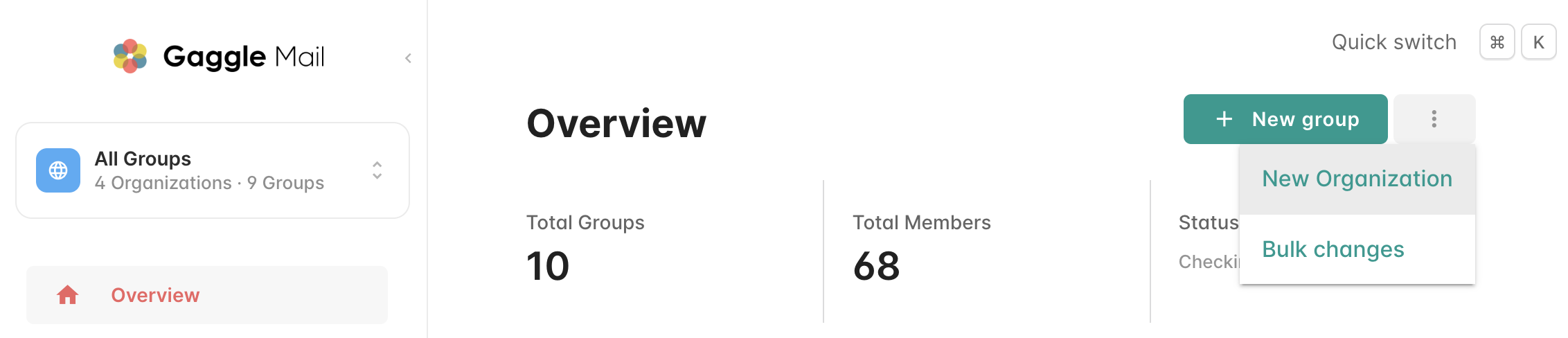
Head over to your Dashboard page, select All Groups to open the account-level view. Click the overflow menu (…) in the top-right, next to New group, and choose New Organization.
-
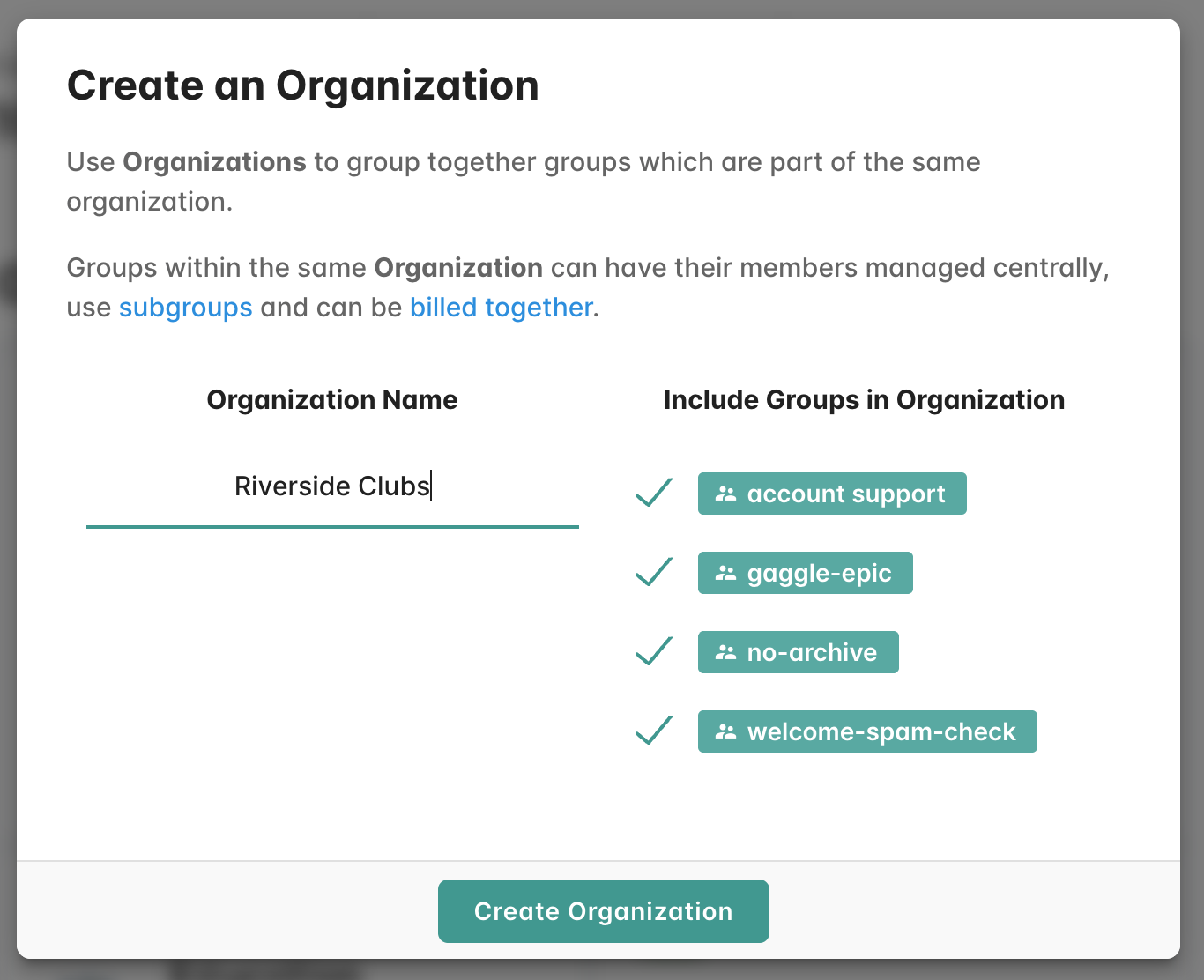
In the Create an Organization dialog, type a name for your Organization under Organization Name. On the right, tick the groups you want to include in the Organization — you can add or remove groups later.
-
Click Create Organization. The selected groups are now linked and appear together under your new Organization. Select the Organization from the account switcher to see its Overview — showing its groups, total members and delivery status.
That’s it — your Organization is ready. From here you might want to:
- Set up your Organization home page so people can find and join your groups.
- Learn more about managing multiple groups, including subgroups.
- Review how billing works for Organizations.