
How to manage multiple groups
When you're managing multiple groups and members, you can often save time (and subscription fees) by either having an Organization plan or linking groups.
This article covers:
Managing groups under an Organization
What does it mean?
You can link an unlimited number of groups, to manage them from one central place. You can also unlink the groups again, simply by disbanding the Organization.
When should I use it?
Use one Organization when you have multiple groups that are related in some way. Whether through topic or members. This means you can:
-
Save on subscription fees
If you've set up an Organization, an Unlimited Groups subscription often saves you money compared to having 5 or more related groups. For example, you only pay for one member even if they're in multiple groups. You can check the difference in Billing after your 14-day trial and view how pricing works
-
Update member details
Update a member's email once, and this updates for all groups where they're a member
-
Remove members
Removing someone from an organization automatically removes them from all groups
-
Move members
You can move members between groups
-
View members' groups
Check which groups a member belongs to, and easily remove them
How can I set it up?
-
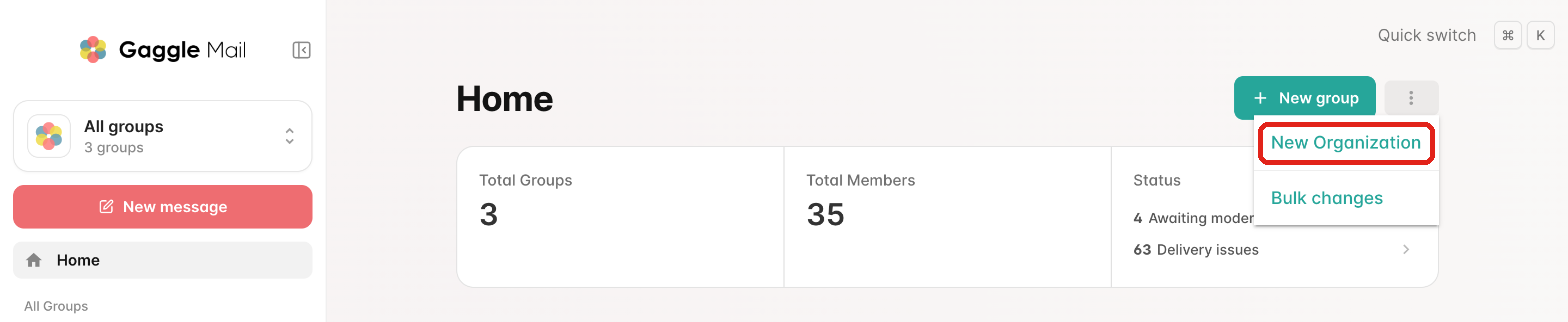
Log in as an Administrator and select All groups from the switcher at the top of the left sidebar. Click the overflow menu (⋮) next to New group and choose New Organization:
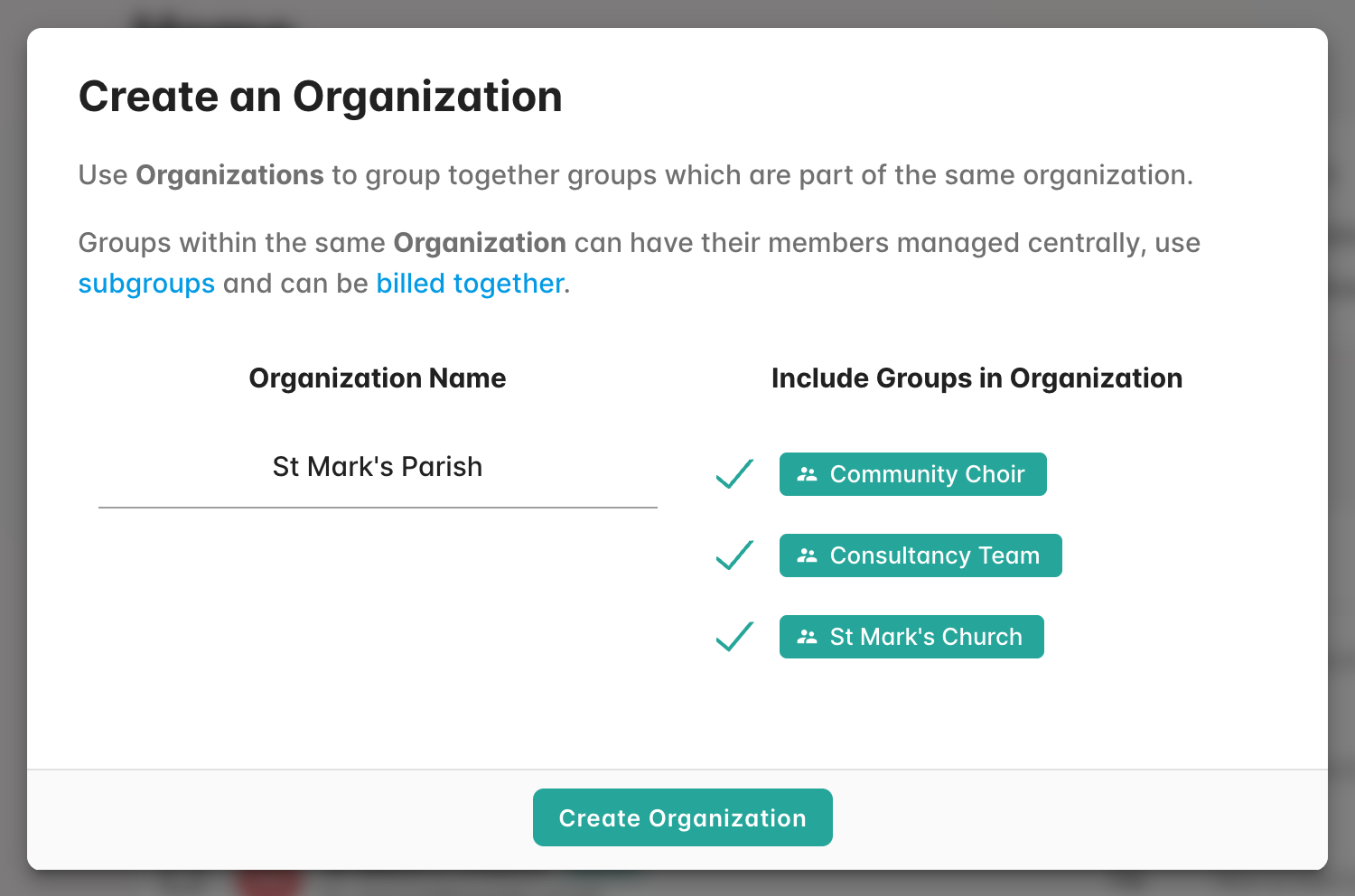
- Enter the Organization name
- Tick the groups to link together in the Organization
-
Click Create Organization:
-
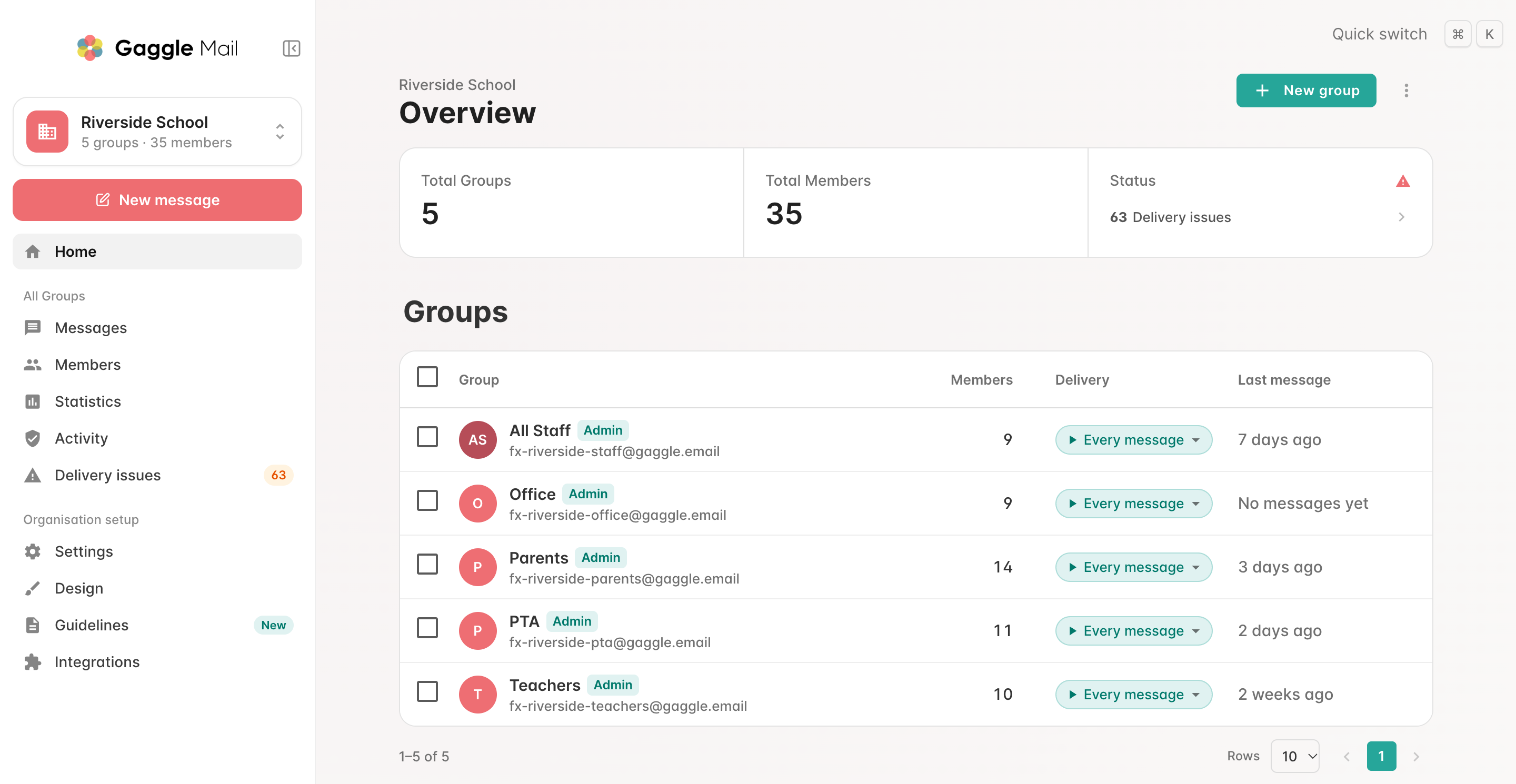
The selected groups are now linked. Select the Organization from the switcher to see them together on its Overview page:
Managing groups as inherited groups
What does it mean?
One group is the 'parent' group, while the inherited groups are the 'children' groups. Sending an email to the parent group means all inherited groups receive the email.
When should I use it?
Inherited groups can be smaller parts of a bigger group. For example:
- Parent group: Gaggle Movie Club
- Inherited Groups: Gaggle Movie Club for Comedy, Gaggle Movie Club for Sci-Fi
- Parent group: Sales Team
- Inherited Groups: Digital Marketing Team, Events Marketing Team
Inherited groups are only available to groups within the same Organization.
How can I set it up?
-
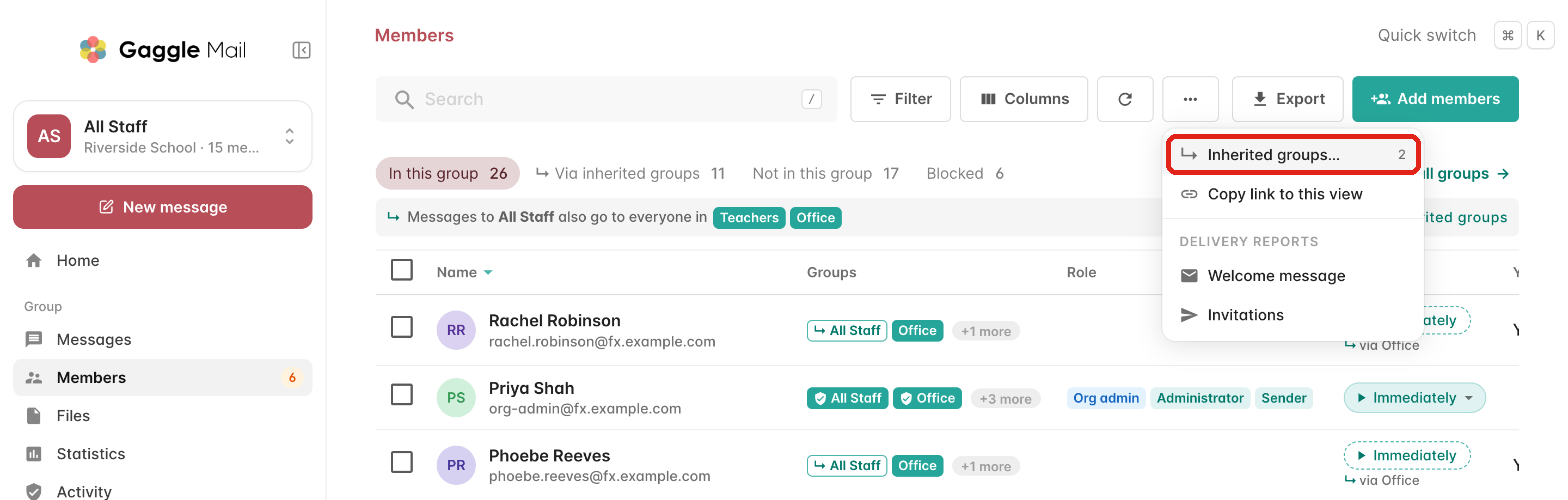
Open the parent group and click Members in the left sidebar. Click the more menu (…) and choose Inherited groups…:
-
Under Its messages also go to, click Add a group and pick each group that should also receive the parent group's messages. Then click Save changes:
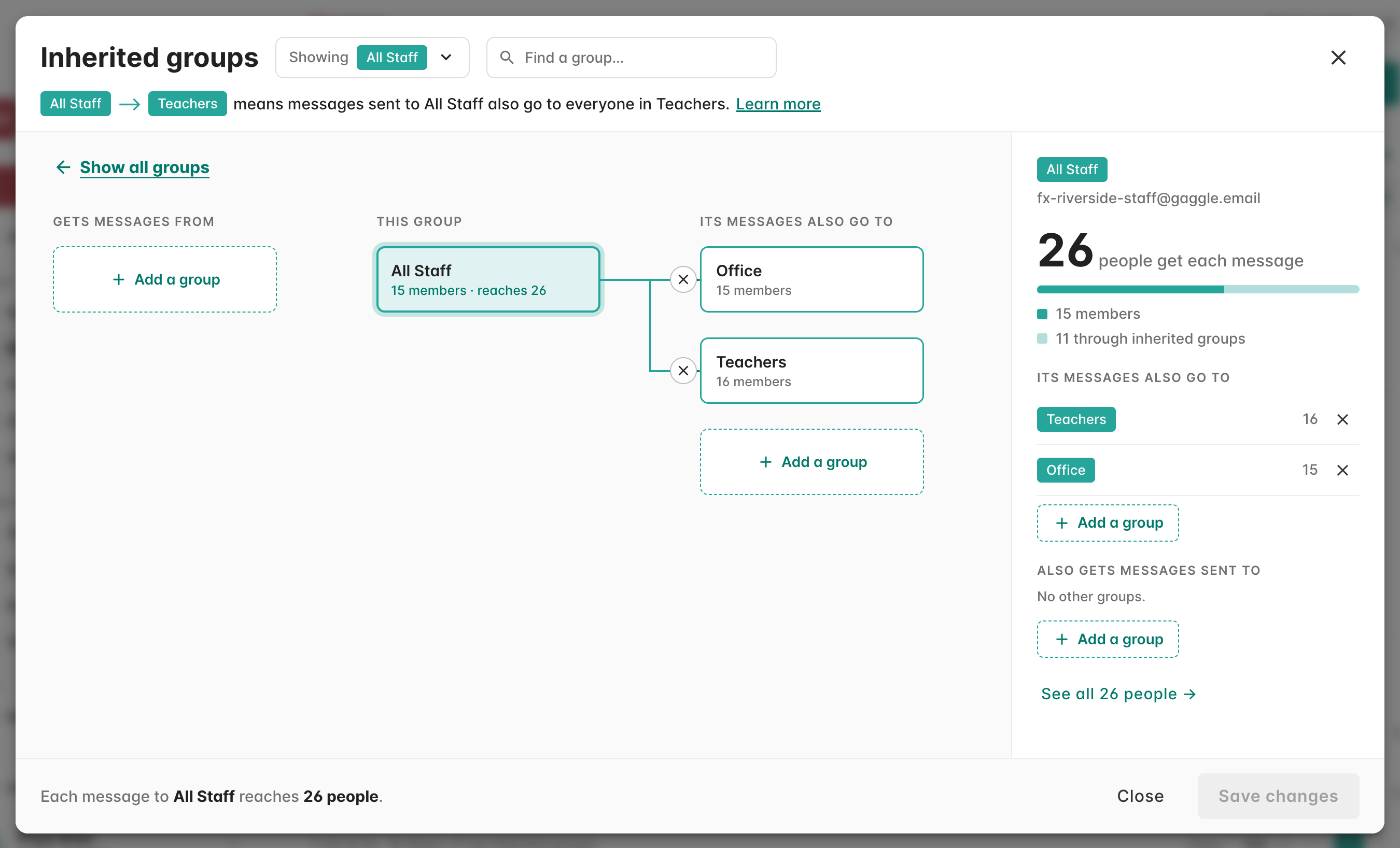
- The Members page now shows a banner listing the inherited groups, with a Manage inherited groups link to change them later.
