
How to bulk-add Members
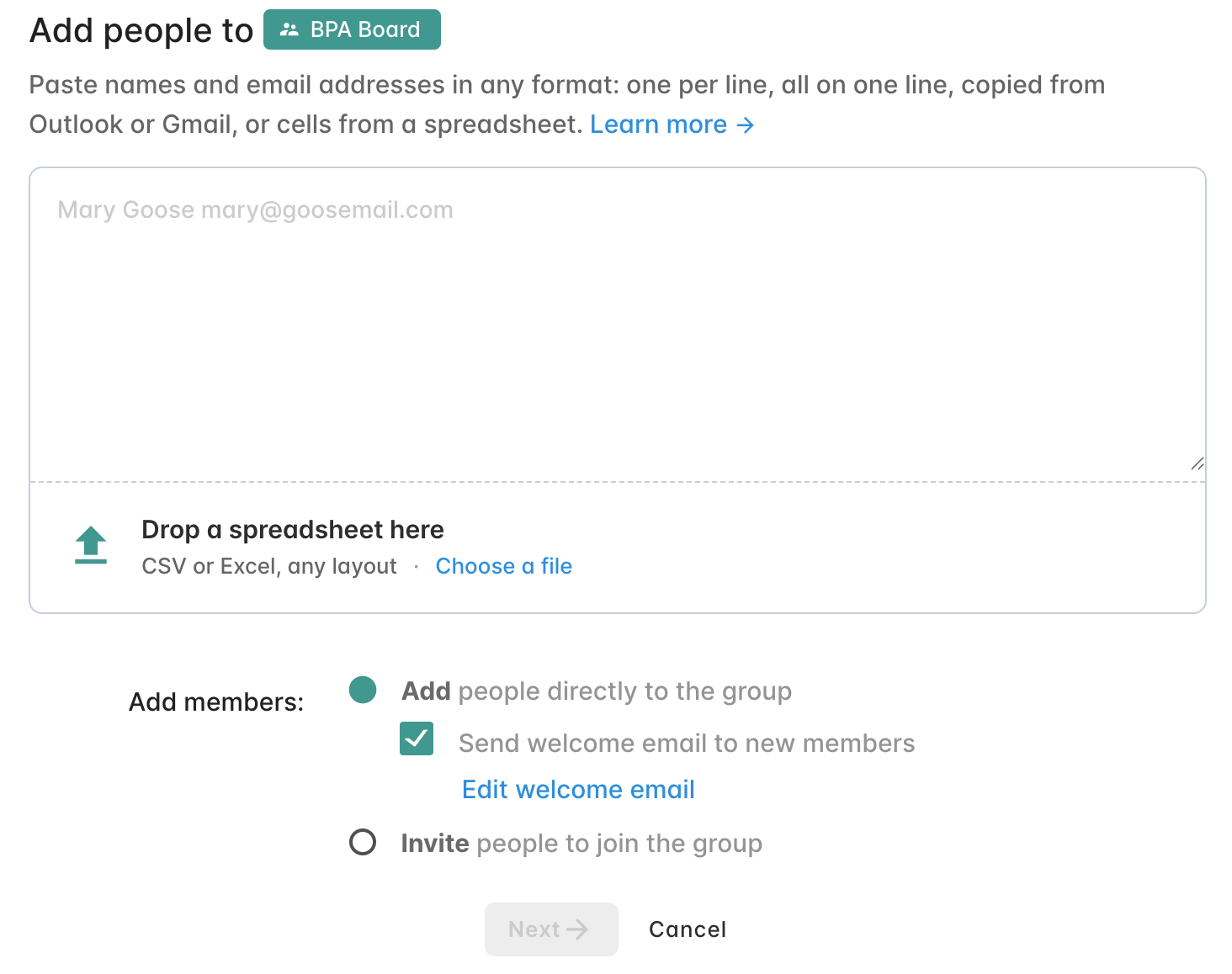
You can add lots of members at once by uploading a spreadsheet. Any spreadsheet. There's no template to download and no fixed layout to follow: export your list from wherever it lives today and upload it exactly as it is. Gaggle Mail reads the file, works out which column is which, and shows you a preview before anyone is added.
You don't need to reformat anything. Column order, heading names, extra columns, first and last names in separate columns, CSV or Excel — none of it matters. If there's an email address in the file, you can upload it.
That means you can upload straight from an export of your old mailing list, your membership or association software, a CRM, your email contacts, or a sheet you've put together yourself. The only thing every row needs is an email address. Everything else is optional.
1. Upload your file
- Open the group and click Members in the sidebar
- Click Add members
- Drag your file onto the page, or click to choose it from your computer
2. Check how the columns were matched
Gaggle Mail reads your column headings and matches them to member fields automatically. Column order doesn't matter, and headings don't need to use particular words: E-mail Address, Email, Contact or Primary email all work, and so do Full Name, First / Last, or Type for delivery.
| Field | What it accepts |
| Required. One email address per row | |
| Name | A full name, or separate first name and last name columns |
| Delivery | Immediate, Digest or Paused. Leave blank for immediate delivery |
Each column heading in the preview shows which column in your file it came from. If something has been matched to the wrong field, click the heading to change it.

Extra columns become custom fields
If your file has columns Gaggle Mail doesn't recognise (say Notes, Phone or Membership type) you'll be asked whether to keep them as custom member fields. Tick the box, rename the field if you like, and that information is stored against each member. Untick it to ignore the column.
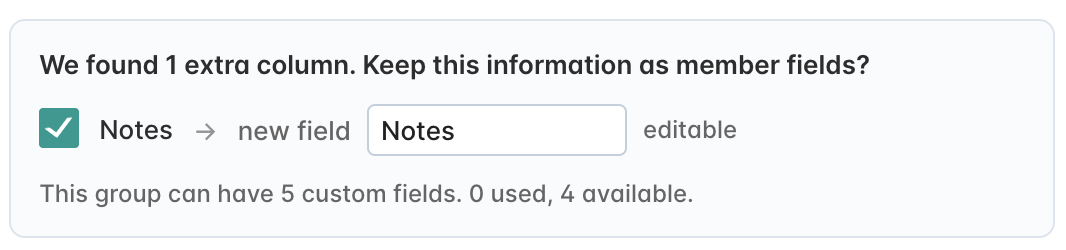
Each group can have up to five custom fields. If a column matches a custom field the group already has, it's mapped to that field automatically.
3. Review the preview
Nothing is added until you say so. You'll see every row from your file with a status:
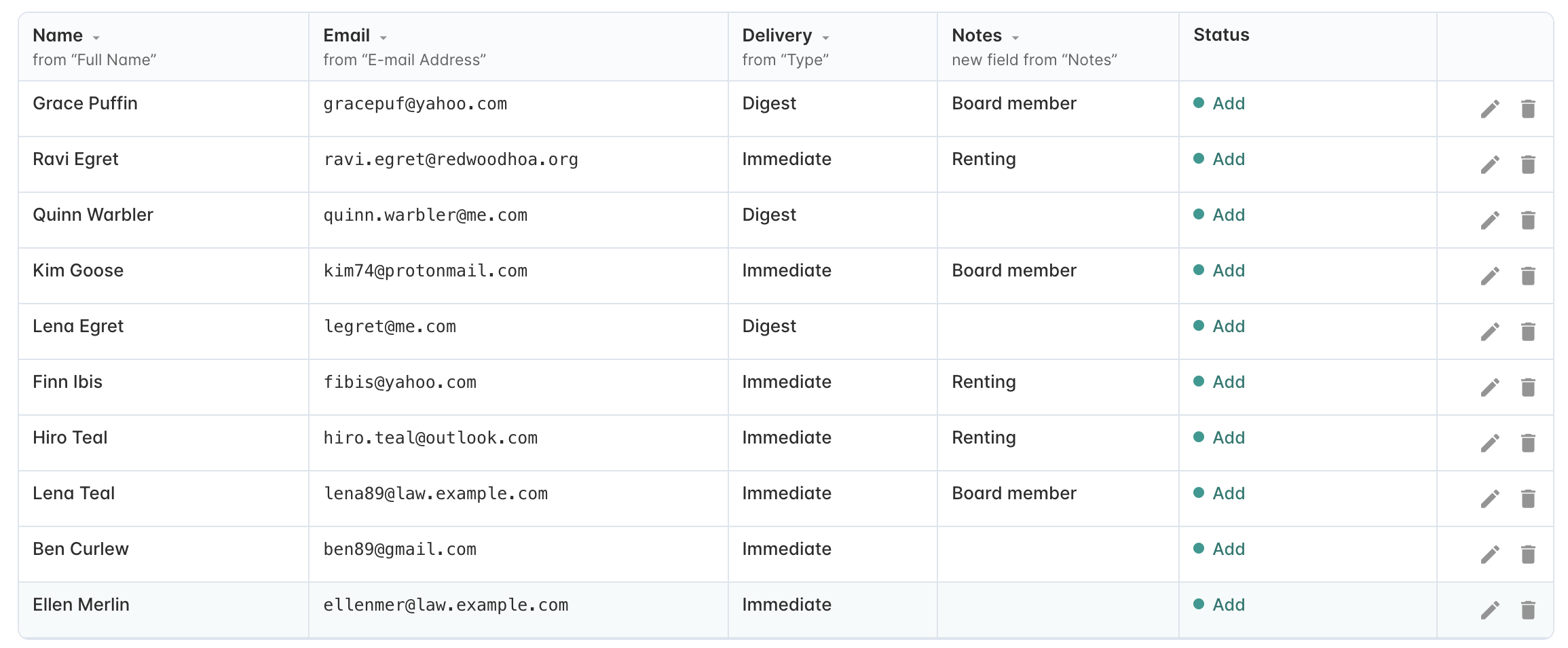
| Status | Meaning |
| Add | A new member who will be added to the group |
| Update | Already a member. Their details will be updated from the file |
| Skip | Already a member and nothing has changed |
| Invalid | The row has no email address, or the address isn't valid. It will be skipped |
Click a status at the top of the preview (for example Invalid 1) to show only those rows.
From the preview you can:
- Edit a row: click the pencil icon to correct a name, email address or field value before it's added
- Remove a row: click the bin icon so that person isn't added
- Download skipped rows (.csv): get a file of the invalid rows so you can fix them in your spreadsheet and upload them again
4. Add the members
Tick Send welcome email if you want new members to receive your welcome message, then click Add.
Replacing the whole member list
If your spreadsheet is the complete, current list of who should be in the group (an annual roster, or a fresh export from your membership system) you can replace the existing members with it in one go.
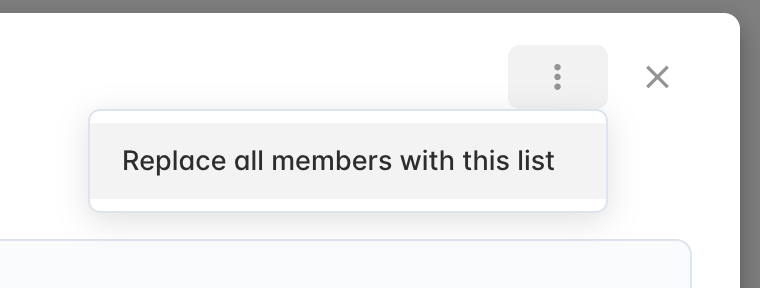
Click the three dots (⋮) at the top right of the preview and choose Replace all members with this list. When you confirm:
- People in the file who aren't yet members are added
- People who are already members are kept, with their details updated from the file
- Current members who aren't in the file are removed from the group
Removing members can't be undone. Export your current member list first so you have a copy. Your subscription isn't reduced automatically when members are removed, so check your plan afterwards.
Example spreadsheets that work
All of these are fine, and so is anything in between. Column order and heading names don't matter.
| Name | Delivery | |
| jo@example.com | Jo Bloggs | Digest |
| First name | Last name | E-mail Address | Type | Notes |
| Jo | Bloggs | jo@example.com | Immediate | Board member |
| Contact |
| jo@example.com |
Adding members one at a time instead? See the format for names and email addresses.