
Guidelines: give your group clear, friendly rules
Guidelines is a short page that tells your members how your group works: what to post, how to reply and what's off limits. It has its own link that anyone can read, with no login and no Gaggle Mail account needed. So everyone sees the same rules, and you can point people to them whenever you need to.
You start from a ready-made template, change the words to suit your group and publish. Gaggle Mail then adds the link to your group's standard messages for you.
Guidelines at a glance
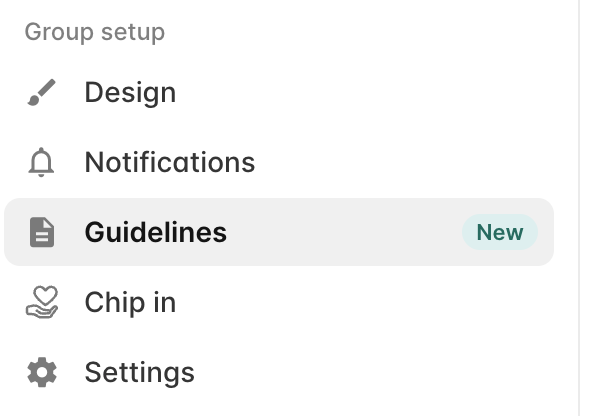
- Where to find it: Open your group and click Guidelines under Group setup.
- Who can read it: Anyone with the link. Members don't need to sign in or create an account.
- The link: gaggle.email/guidelines/ followed by your group's address, for example gaggle.email/guidelines/fx-book-club.
- Getting started: Eight templates to choose from, or a blank page.
- Where it's linked: Your standard message footer, welcome message and invite message, plus the menu of signed-in members.
- Several groups? If they're in an Organization, write the guidelines once and let each group use them, or give a group its own. See Guidelines for a whole Organization.
- Nothing is public until you publish. You can take the page down again at any time.
Set up your guidelines
-
Log in, open your group and click Guidelines under Group setup:
-
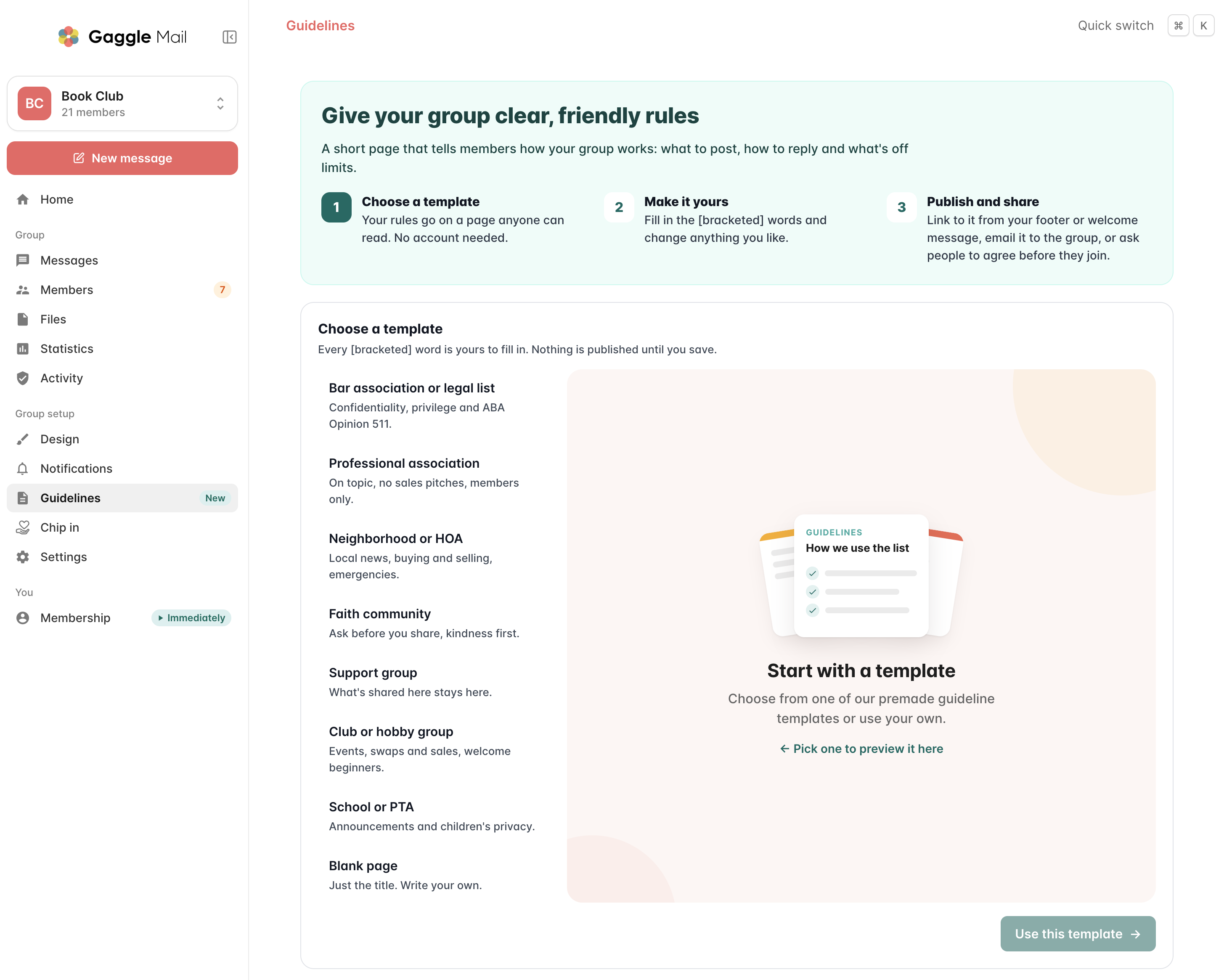
Choose a template. Click a template in the list to preview it on the right, then click Use this template. Pick the one closest to your group. You can change every word afterwards.
- Make it yours. Fill in every [bracketed] word, such as your group's name, and change anything else you like. Delete the parts that don't apply.
- Publish. Click Save changes, then turn on the Published switch. The badge changes to Live and your page is ready to share.
The templates
- Bar association or legal list: confidentiality, privilege and ABA Opinion 511.
- Professional association: stay on topic, no sales pitches, members only.
- Neighborhood or HOA: local news, buying and selling, emergencies.
- Faith community: ask before you share, kindness first.
- Support group: what's shared here stays here.
- Club or hobby group: events, swaps and sales, welcome beginners.
- School or PTA: announcements and children's privacy.
- Blank page: just the title. Write your own.
Edit your guidelines
Once you've chosen a template, the Guidelines page becomes your editor:

- The top bar shows whether your page is Live, its link (click it to open the page in a new tab), Copy link, and the Published switch.
- Page title is the big heading at the top of your page, for example "How we use the Book Club list".
- The text box holds your guidelines. Use the toolbar to add headings, bold, italics, lists and links. Click Preview to see exactly how your page will look, and Write to go back to editing.
- Switch template lets you start again from a different template. It replaces the text in the editor.
- Under the text box you'll see whether your changes are saved, and the word count. Click Save changes when you're done.
Formatting
The toolbar adds these for you, or you can type them yourself:
| Type this | To get |
## What this list is for |
A heading |
**important** |
Bold text |
*please* |
Italic text |
- Be kind |
A bulleted list item |
[our website](https://example.com) |
A link |
Keep it short. A few headings with a sentence or two under each is easier to read than a long policy, and members are more likely to read all of it.
What your members see
Your guidelines page shows your group's name, your page title in your group's colour, the date it was last updated, and your guidelines underneath. It works on phones as well as computers.

The page shows your guidelines and nothing else about your group. It doesn't show your group's email address or who your members are.
Help members find your guidelines
It's linked for you
Once your page is live, Gaggle Mail adds the link to your group's standard messages automatically. The Where it's linked box on the Guidelines page shows where:

- Your message footer, at the bottom of every group message.
- Your welcome message, sent to new members when they join.
- Your invite message, sent to people you invite.
- The members' menu. Signed-in members see Guidelines in their menu, which opens your page in a new tab.
Written your own footer, welcome or invite message? Then the link isn't added for you. Click Copy link at the top of the Guidelines page and paste it into your message, for example "Please read our group guidelines: [link]". See How to customise 'Welcome' and 'Invite' messages.
Send them to everyone
To make sure current members have seen your guidelines, click Write the message in the Send to the group box. It opens a new message to the whole group with your guidelines already in it. Change the opening lines if you like, then send it. Nothing is sent until you press Send.
This is handy when you first publish your guidelines, and again whenever you make a big change.
Share it anywhere else
Click Copy link and paste it wherever your members will see it: your website, a newsletter, a sign-up form or a meeting agenda. Linking from your website lets people read your rules before they ask to join.
Guidelines for a whole Organization
If your groups are in an Organization, you don't have to write guidelines for each group. Write them once for the Organization and every group in it can use them. Any group that needs different rules can still have its own.
How it works
- The Organization's guidelines are the default. A group that hasn't written its own uses the Organization's.
- A group's own guidelines replace them for that group only. The other groups carry on using the Organization's.
- Each group keeps its own link and its own Published switch. The link always shows the guidelines that group uses, so it doesn't change if a group switches between its own and the Organization's.
- Changes show straight away. When you edit the Organization's guidelines, every group that uses them shows the new version.
Set up guidelines for your Organization
- Select your Organization from the account switcher and click Guidelines under Organization setup.
- Choose a template, make it yours and click Save changes, just as you would for a single group.
- Turn the page on for your groups in the Lists box.
The Lists box shows every group in your Organization:

- Uses these means the group uses the Organization's guidelines. Has its own means it has written its own.
- Live or Off shows whether the group's guidelines page is published. Use the switch next to a group to turn its page on or off.
- All lists turns the page on or off for every group that uses the Organization's guidelines, in one go. Groups with their own guidelines aren't changed.
Give one group its own guidelines
Open the group and click Guidelines. If the group uses the Organization's guidelines, you'll see them there, but you can't edit them from the group.
- To write separate guidelines for this group, click Write separate guidelines. The Organization's text is copied into the group's editor as a starting point. Change what you need and click Save changes.
- To go back to the Organization's guidelines, click Use the Organization's guidelines instead. This deletes the group's own text.
- To edit the Organization's guidelines, click Edit in the Organization. You'll only see this if you're an Organization Admin.
Change, take down or delete your guidelines
- To change them, edit the text and click Save changes. The link stays the same, so links you've already shared keep working, and the "Last updated" date on the page changes.
- To take the page down, turn off the Published switch. The link stops working and the Guidelines item disappears from members' menus. Your text is kept, so you can turn it back on whenever you like.
- To delete them, click Delete guidelines under the Last updated date. This removes your text, and you'll start again from the templates.
Common questions
Do members need a Gaggle Mail account to read the guidelines?
No. Anyone with the link can read them, whether they've signed in or not.
Who writes the guidelines?
Your group's admins. Gaggle Mail hosts the page, but doesn't write or check what's on it. The templates are a starting point, so read them through and make sure they fit your group.