
Wild Apricot integration
The Wild Apricot integration keeps your Gaggle Mail groups in sync with your Wild Apricot membership — automatically. It reads your membership levels and member groups from Wild Apricot and turns them into email discussion lists, so members can start and reply to conversations straight from their inbox. Your membership data stays exactly where it is: the sync is one-way, from Wild Apricot into Gaggle Mail.
This article covers what the integration does, how to set it up, and how your Wild Apricot levels and groups map to Gaggle Mail groups. For a full overview of features and benefits, see the Wild Apricot integration page.
What the integration does
- Syncs members automatically. New members added in Wild Apricot are added to the matching Gaggle Mail group on the next sync; lapsed or removed members are taken out. Every group stays current with no manual imports.
- Runs one-way. Wild Apricot is the source of truth. Gaggle Mail never writes back to Wild Apricot, so your membership records are never changed by the sync.
- Runs daily, plus on demand. The sync runs once a day on its own. You can also trigger it manually from Gaggle Mail at any time, up to a maximum of once every 10 minutes.
- Uses a read-only key. The integration connects with a read-only Wild Apricot API key that you can revoke at any time.
- Respects unsubscribes. Anyone who has unsubscribed from a Gaggle Mail group is never re-subscribed by the sync.
Before you start
The Wild Apricot integration is set up on an Organization and requires a paid plan. If you don't have an Organization yet, create one first — see Organization: Introduction. For a general overview of how integrations work, see Integrations.
How to set it up
Setup takes around five minutes. If you'd rather not do it alone, our support team is available 24/7 and happy to walk you through every step.
- In Gaggle Mail, open your Organization, go to the Integrations page, find Wild Apricot and click Connect.
- Generate an API key in Wild Apricot (see the steps below).
- Paste the key into Gaggle Mail to connect your account.
- Map the Wild Apricot membership levels and member groups you want to sync to your Gaggle Mail groups. The first sync runs immediately, then daily.
Getting your Wild Apricot API key
Gaggle Mail connects to Wild Apricot using a server application API key. To create one:
-
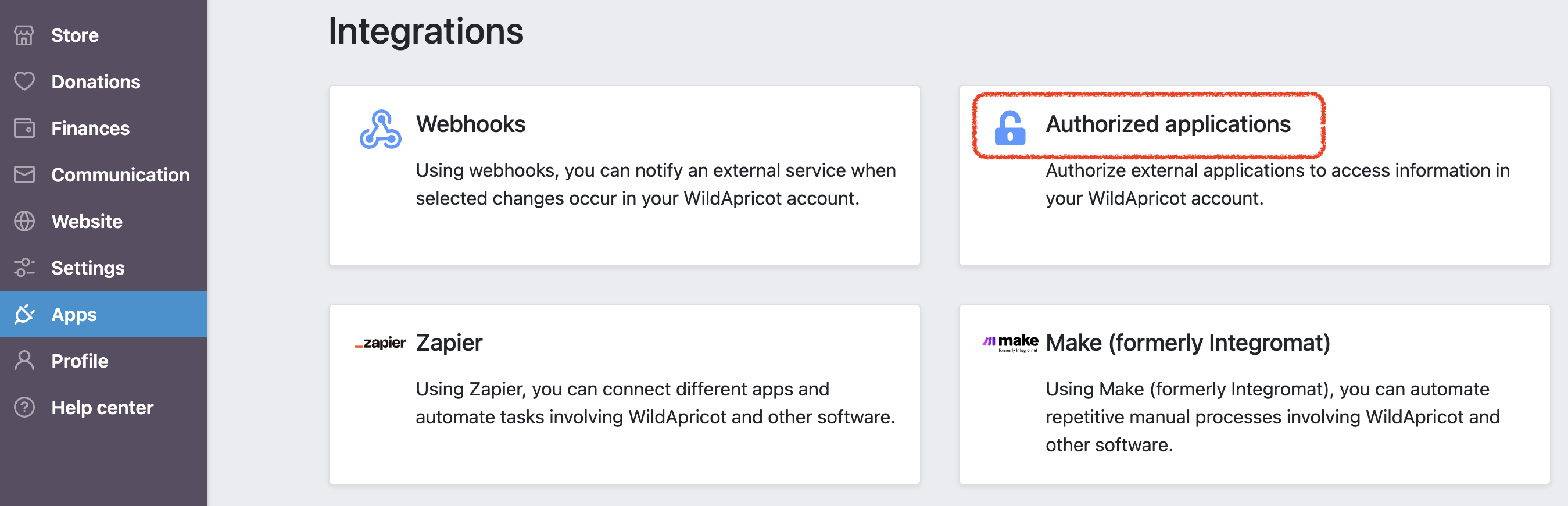
In Wild Apricot, go to Apps → Integration → Authorized applications.
-
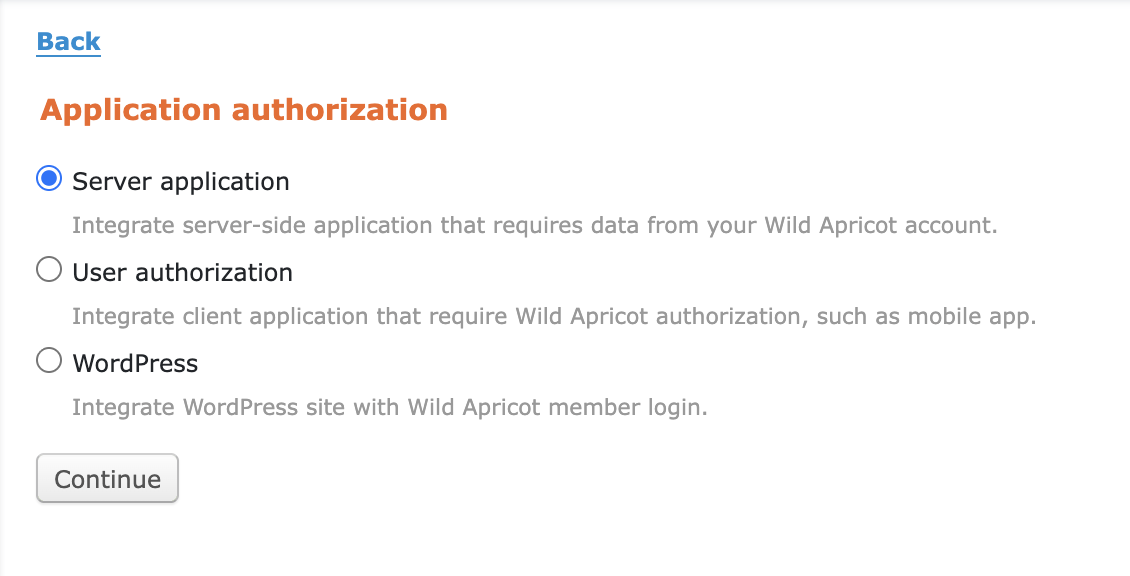
Add a new authorized application and choose Server application, then click Continue.
- Give the application a name (for example, "Gaggle Mail"), then copy the API key it generates.
- Paste the key into Gaggle Mail to complete the connection.

The key is used read-only and is stored securely. You can revoke it from Wild Apricot at any time, which immediately cuts off the integration's access.
How Wild Apricot maps to Gaggle Mail groups
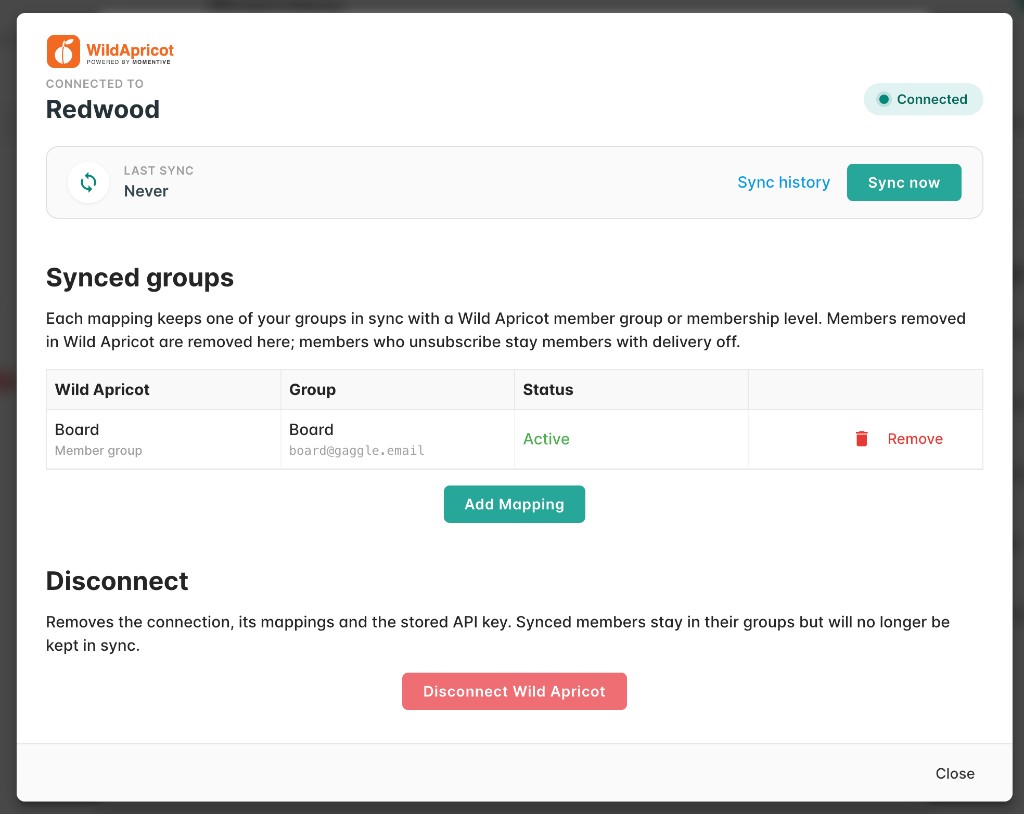
You control exactly what syncs by setting up mappings. Each mapping keeps one Gaggle Mail group in sync with one Wild Apricot membership level or member group. For example:
- Your "Active Members" membership level feeds your
members@group. - Your "Board" member group feeds your
board@group.
On each sync, Gaggle Mail reads the members of the mapped Wild Apricot level or group and updates the linked Gaggle Mail group to match — adding new members and removing those who have lapsed or left. You can create as many mappings as you need.
Good to know
- Your Wild Apricot data is never changed. The integration only reads from Wild Apricot; it never writes back.
- Lapsed members drop off automatically. Membership levels can be set to sync only current members, so lapsed memberships are removed without any manual list maintenance.
- Unsubscribes are honoured. Members who opt out of a Gaggle Mail group are not re-added by the sync.
- The key is revocable. Revoke the API key in Wild Apricot at any time to instantly cut off access.